
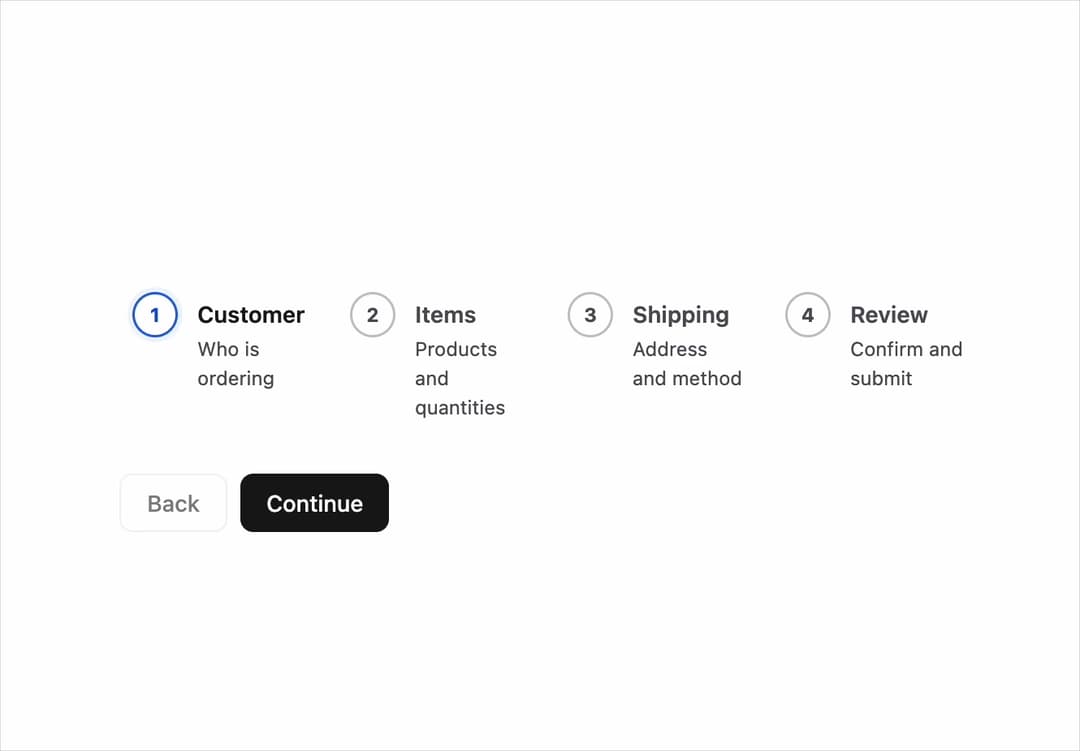
About
An accessible numbered-step progress indicator for multi-step forms and checkout flows, supporting horizontal or vertical layout and optional click-to-jump-back on completed steps.
Built with React and Tailwind. Copy the prompt and paste it into Claude Code, Cursor or Lovable: your agent adds Stepper to your project and fits it to your theme.
Code
How Stepper is used: the demo's code. The component's own source comes with a free account.
Usage.tsx
"use client";

import { Stepper } from "@/components/ui/stepper";
import { useState } from "react";

const steps = [
  { id: "customer", label: "Customer", description: "Who is ordering" },
  { id: "items", label: "Items", description: "Products and quantities" },
  { id: "shipping", label: "Shipping", description: "Address and method" },
  { id: "review", label: "Review", description: "Confirm and submit" },
];

export default function StepperDemo() {
  const [current, setCurrent] = useState(1);

  return (
    <div className="w-full max-w-xl mx-auto p-6 bg-background text-foreground">
      <Stepper steps={steps} currentStep={current} onStepClick={setCurrent} />
      <div className="mt-6 flex gap-2">
        <button
          type="button"
          className="h-9 rounded-md border border-input bg-background px-4 text-sm font-medium text-foreground disabled:opacity-50"
          onClick={() => setCurrent((c) => Math.max(0, c - 1))}
          disabled={current === 0}
        >
          Back
        </button>
        <button
          type="button"
          className="h-9 rounded-md bg-primary px-4 text-sm font-medium text-primary-foreground disabled:opacity-50"
          onClick={() => setCurrent((c) => Math.min(steps.length, c + 1))}
          disabled={current === steps.length}
        >
          {current >= steps.length - 1 ? "Submit order" : "Continue"}
        </button>
      </div>
    </div>
  );
}
More by sudharshanpanidev
View all
Status Badge
Button
Select
Empty State

Checkbox